
1xBet APK Download para sa Android Philippines — Installation Guide
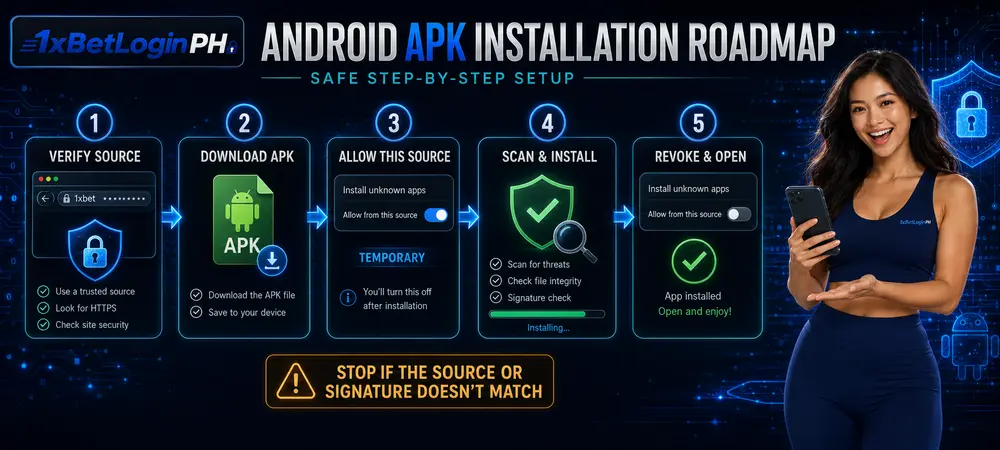
Para mag-install ng Android APK, magsimula lamang sa verified operator page at i-check ang kasalukuyang Android download option. Huwag kumuha ng file mula sa APK mirror, social-media message, email attachment, o “modded app” website. Pagkatapos ma-verify ang source, maaaring kailanganin mong pansamantalang payagan ang browser o file manager na mag-install ng unknown app—at alisin muli ang permission pagkatapos.
Independent guide: Ang 1xBet Login PH ay isang independent informational at affiliate website. Hindi kami ang official operator, hindi kami nagho-host o namamahagi ng APK file, at hindi kami nangongolekta ng username, password, OTP, o payment details. Ang external links ay maaaring affiliate links.
Verification notice: Maaaring magbago ang download route, compatibility, at installation requirements. Hindi kami naglalathala ng unverified app version, APK size, checksum, o direct file URL. I-check ang current details sa verified operator page bago mag-download.
Quick navigation
Ano ang APK at paano ito naiiba sa Play Store app?
Ang APK, o Android Package Kit, ay installation package na ginagamit ng Android para magdagdag ng app sa phone o tablet. Kapag nag-download ka ng app mula sa Google Play, ang store ang humahawak sa download, installation, at karaniwang update process. Kapag diretsong APK ang ini-install, ikaw ang kailangang mag-verify ng download source at aprubahan ang installation prompt.
| Installation route | Saan nanggagaling | Update method | Pangunahing consideration |
|---|---|---|---|
| Google Play installation | Google Play listing | Through Google Play | Check the listing, developer, compatibility, and permissions |
| Direct APK installation | Verified developer or operator page | Return to the same verified source | Verify the URL, file prompt, permissions, and future updates |
| Third-party APK mirror | Unrelated download website | Mirror-controlled | Avoid because the file’s authenticity and modification history may be unclear |
| “Modded” APK | Unofficial source | Unreliable | Do not install; modified builds can introduce account and device risk |

Ang APK ay hindi awtomatikong unsafe, pero mas malaki ang responsibility ng user kapag installation happens outside a trusted app store. Hindi sapat na may familiar logo o filename ang file—kailangan ding tama ang source.
Kung gusto mong ikumpara ang Android, iPhone, browser, Lite, at PC access, bumalik sa 1xBet App Download Philippines guide.
Pre-download device at security checklist
Bago simulan ang 1xBet APK download, gamitin ang checklist na ito:
- Updated Android: Check for available system and security updates.
- Stable connection: Gumamit ng trusted Wi-Fi o stable mobile data.
- Available storage: Tiyaking may sapat na space para sa download, installation, at temporary files.
- Correct date and time: Automatic date and time helps avoid certificate and connection errors.
- Play Protect enabled: Huwag i-off para lamang mapilit ang installation.
- Verified destination: Open the download page through a trusted operator link, not a search advertisement or forwarded message.
- No duplicate APKs: Delete earlier incomplete downloads para hindi maling file ang mabuksan.
- Known login method: Make sure you know which phone number, email, or account ID is connected to your account.
- No shared device: Kung shared ang phone, mas maingat gamitin ang browser at huwag mag-save ng password.
- Personal limit: Adults only; decide your spending and time limits before using a gambling service.
Kung kulang ang storage o hindi stable ang connection, huwag paulit-ulit mag-download. Ayusin muna ang device issue o gamitin ang browser version.
Paano i-verify ang APK download source
Ang source verification ang pinakamahalagang bahagi ng APK installation. Before tapping the download button, review these signals together:
1. Tingnan ang buong URL
Basahin ang address bar, kasama ang spelling at domain ending. Mag-ingat sa dagdag na hyphen, maling letter, strange subdomain, o URL shortener na nagtatago sa final destination.
2. Magsimula sa verified operator page
Do not search for the filename on an APK mirror. Open the verified operator page first, then follow its current Android download control. Kung mapunta ka sa unrelated file-sharing site, advertising page, o unexpected domain, stop and verify before continuing.
3. Huwag umasa sa logo o filename lamang
Madaling kopyahin ang app icon, screenshot, at filename. A file called latest.apk or official.apk is not proof of authenticity.
4. I-review ang browser warning
Android browsers may warn that APK files can harm a device because they can install software. Ang warning ay hindi dapat awtomatikong i-dismiss. It is your prompt to confirm that you intentionally started the download from the verified source.
5. Compare verification data only when officially supplied
Kung ang verified source ay naglalathala ng version, file size, o cryptographic checksum, compare those values before installation. Kung walang published value, huwag kumuha ng checksum mula sa unrelated site at huwag mag-imbento ng “verified” number.
🛑 Red flags na dapat ihinto ang installation
- “Cracked,” “premium unlocked,” “mod,” o “unlimited bonus” ang file description;
- Kailangan daw i-disable ang antivirus o Play Protect;
- Humihingi ng payment bago ma-download ang APK;
- Email, chat, o social-media attachment ang file;
- Maraming redirect at fake download buttons;
- Ibang app name ang lumalabas sa Android installation prompt;
- Humihingi agad ng Accessibility, device-admin, SMS, o contacts access nang walang malinaw na dahilan.

Step-by-step Android APK installation
The exact labels can vary by Android version and phone manufacturer, but the safe workflow is generally the same.
Buksan ang verified Android download page
Use an updated browser. Confirm the URL before selecting the Android or APK option.
Basahin ang current download details
Review any displayed device requirement, update note, or installation instruction. Do not continue if the page conflicts with your device or redirects to a source you cannot verify.
Simulan ang APK download
Tap the current Android download control. If the browser asks whether you want to keep the file, confirm only if the source and file type match what you expected.
Hintaying matapos ang download
Do not open a partial file. Check the Downloads panel or notification and wait until the download is complete.
Buksan ang downloaded APK
Open the file from your browser’s Downloads list or the phone’s Files app. If Android blocks the installation, use the system prompt to review which source needs temporary installation permission.
Allow only the source you are using
If the file was opened from Chrome, the permission should apply to Chrome. If it was opened through Files, it should apply to that file manager. Do not enable every app in the Unknown apps list.
Review the Android installation screen
Check the displayed app name and prompts. If the app identity is unexpected or Play Protect issues a harmful-app warning, cancel the installation.
Tap Install
Wait for Android to finish. Do not restart the device or open another copy of the installer while installation is running.
Remove the temporary source permission
After installation, return to Install unknown apps settings and turn off Allow from this source for the browser or file manager you used.
Review the installed app before logging in
Open Settings → Apps → the installed app → Permissions. Review what is allowed, then open the app. Enter credentials only when confident.
Handa ka na bang tingnan ang verified Android download link?
Tingnan ang Verified Android Option → Gambling with the PAGCOR logo and gambling can be addictive. 18+ only.
Paano i-manage ang “Install unknown apps” permission
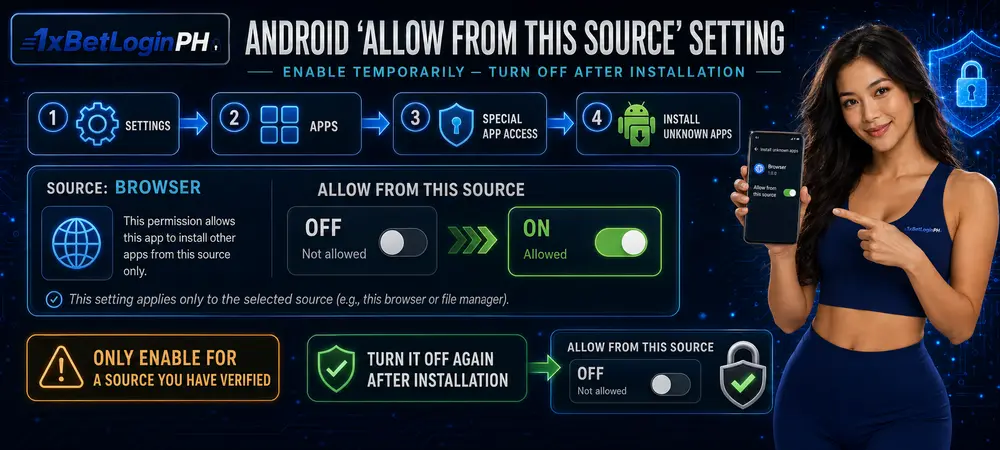
Android normally blocks installations from outside a first-party app store until the user grants permission. On Android 8.0 and newer, this permission is generally assigned to a particular source, such as the browser or Files app—not enabled as one permanent permission for every source. This behavior is documented in the Android Developers alternative-distribution guidance.
Common path on newer Android phones
Depending on the manufacturer, use the installation prompt or try:
- Open Settings.
- Tap Apps.
- Open Special app access.
- Tap Install unknown apps.
- Select the browser or file manager that opened the APK.
- Turn on Allow from this source only long enough to complete the verified installation.
- Return after installation and turn it off again.
Kung hindi pareho ang menu labels, search for “install unknown apps” inside Settings or consult the phone manufacturer’s instructions.
Kapag gray o disabled ang permission
Possible reasons include:
- Work or school device policy;
- Family or parental control;
- Device administrator restriction;
- Manufacturer security policy;
- Unsupported user profile;
- A security tool blocking the source.
Huwag alisin ang certificates, huwag mag-factory-reset, at huwag i-disable ang Play Protect o bypass an administrator para lamang mapilit ang APK. Gamitin ang browser access sa halip.
Older Android devices
Older versions may use a broader Unknown sources setting. Because older devices may no longer receive security updates, do not treat enabling that setting as a routine solution. Check whether the device can still be updated or use a supported browser on a newer device.
Play Protect at app permission checks
Google Play Protect checks apps from Google Play and can also inspect apps installed from other sources. It can warn about, block, disable, or remove potentially harmful software. Google recommends keeping it enabled. Review the official Google Play Protect guidance.
Check Play Protect
- Open the Google Play Store.
- Tap your profile icon.
- Tap Play Protect.
- Open its settings.
- Keep Scan apps with Play Protect enabled.
Huwag patayin ang Play Protect. Kung ang diagnostic tool na ito ay maglabas ng harmful-app warning, kanselahin ang installation at tanggalin ang APK.
Review runtime permissions
Android lets users change permissions under the app’s settings. The exact options vary, but Android may offer choices such as **Allow only while using the app**, **Ask every time**, or **Don’t allow**. See Google’s Android permission-management guidance.
Gamitin lamang ang pinakamaliit na access na kailangan:
- Notifications: Optional; allow only if you want alerts.
- Camera: Allow only for a specific feature you intentionally start (like document upload).
- Photos and files: Prefer limited access when available.
- Location: Review why the app requests it.
- Microphone: Deny unless a feature clearly needs it.
- Contacts, call logs, or SMS: Pause and verify any unexpected request.
- Accessibility, display over other apps, or device admin: Treat unexpected special-access requests as a serious warning.

Paano mag-login pagkatapos ng installation
Kapag installed na at na-review mo na ang app:
- Open the app from the Android launcher.
- Select Login.
- Choose the login method actually connected to your account.
- Enter your details only inside the verified operator app.
- Complete an OTP or security prompt only if you initiated the login.
- Review the account shown before taking another action.
Huwag ibigay the password o OTP sa chat agent, social-media account, o independent guide na ito. Ang 1xBet Login PH website ay walang operator login form at hindi nangongolekta ng pondo.
Kung hindi gumagana ang credentials, huwag gumawa agad ng second account. Subukan muna ang browser web version o gamitin ang official recovery. See 1xBet Login Hindi Gumagana? Narito ang mga Solusyon.
Paano mag-update o mag-reinstall ng APK
Updating a direct APK installation
- Check the app’s current version in its About or app-info area, if displayed.
- Return to the same verified operator download page.
- Review the current update instructions.
- Download only from that verified route.
- Open the new APK and follow Android’s update prompt.
- Review new permissions before approving them.
- Turn off the source-installation permission after completion.
Do not publish or rely on a version number without a dated official source. Read the supporting 1xBet App Update 2026 guide for a fuller update checklist.
Reinstalling the app
Before uninstalling, make sure you know the correct login method and do not assume the app has locally saved everything. Uninstall the existing app, restart, download a fresh copy from the verified source, and repeat the security checks. Reinstalling does not fix an account restriction or wrong password.
“App not installed” troubleshooting
| Error o symptom | Posibleng dahilan | Recommended action |
|---|---|---|
| App not installed | Incompatible build, corrupt download, conflicting package, or restricted device | Stop, verify compatibility and source, remove incomplete file, then retry once |
| Problem parsing package | Incomplete download or unsupported Android version | Delete the file, check connection and compatibility, then use browser access if unresolved |
| Installation blocked | Unknown-source permission not granted or device policy | Grant only the verified source temporarily; do not bypass work/family restrictions |
| Play Protect warning | Unverified or potentially harmful behavior | Cancel installation and keep Play Protect enabled |
| Update will not install | New package may conflict with installed build or source | Return to the original verified source; do not install over it from a mirror |
| Download stops | Weak internet or insufficient storage | Check connection, storage, system update, date/time, and restart |
| App installs but closes | Compatibility, corrupted installation, or system issue | Restart, check updates, review permissions, or use the browser version |
| Login fails after reinstall | Wrong credentials, OTP issue, connection, or account status | Test the verified browser login and use official recovery/support |
Google’s official download troubleshooting recommends checking the internet connection, storage space, Android system updates, date and time, and restarting the device. See Google Play download troubleshooting.
Huwag patuloy mag-download mula sa iba't ibang hindi kilalang site para lutasin ang isyu. Pinalalaki lamang nito ang panganib sa device at account.

Paano alisin ang luma o suspicious na app
Kung mali ang source, iba ang app name, may unexpected ads, o may serious security warning:
- Stop using the app and do not enter additional information.
- Open Settings → Apps → See all apps.
- Select the app.
- Tap Uninstall.
- Open the Downloads folder and delete the related APK file.
- Return to Install unknown apps and disable permission for the browser or file manager used.
- Open Google Play Protect and run the available scan.
- Review recently granted permissions and remove anything unexpected.
- If you entered credentials into a suspicious app, change the password only through the verified operator environment and contact official support.
- Review other important accounts if the same password was reused.
Ang pag-alis ng desktop o home-screen icon lamang ay hindi nag-a-uninstall sa application. Tiyaking wala na ito sa inyong settings apps list. See Delete apps on your Android device.
Frequently asked questions
Suriin ang mga mabilisang sagot sa pinaka-karaniwang mga tanong tungkol sa 1xBet Android APK:
Final Android download checklist
Bago umalis sa gabay na ito, kumpirmahin ang mga sumusunod para sa inyong kaligtasan:
- Verified operator destination ang source;
- Hindi third-party mirror o modded APK ang file;
- Updated ang device at may sapat na storage;
- Enabled ang Play Protect;
- Temporary source permission lamang ang ibinigay;
- Na-review ang app name at permissions;
- Tinanggal muli ang source permission pagkatapos mag-install;
- Sa verified app lamang ilalagay ang login details;
- Browser access ang gagamitin kapag may unresolved warning.
Buksan ang Verified Android Download Page
Buksan ang Verified Page →
Gambling with the PAGCOR logo and gambling can be addictive. 18+ only.
Editorial sources
Mga Gabay at Impormasyon sa Hub na Ito
Frequently Asked Questions
FAQ Ano ang 1xBet APK?
It is an Android installation package offered through a download route when such an option is currently available. This guide does not host the file or confirm a current version without a verified source.
FAQ Saan dapat mag-download ng APK?
Start from the verified operator page and follow only its current Android download destination. Avoid APK mirrors, social-media files, email attachments, and “modded” builds.
FAQ Nagho-host ba ng APK ang 1xBet Login PH?
Hindi. This website provides independent instructions only. The CTA must point to the configurable verified external destination, not to a locally hosted APK.
FAQ Safe ba ang APK?
No article can guarantee that an unknown file is safe. Safety depends on the actual source, file integrity, device warnings, permissions, and current security checks. Stop if the source cannot be verified or Play Protect reports harmful behavior.
FAQ Kailangan bang i-off ang Google Play Protect?
Hindi. Keep Play Protect enabled. If a page tells you to disable it to force installation, treat that instruction as a warning sign.
FAQ Bakit kailangan ang “Allow from this source”?
Android normally blocks apps installed outside a trusted first-party store. On newer Android versions, the user must grant installation permission to the specific source app—such as a browser or file manager—that opens the APK.
FAQ Dapat bang manatiling enabled ang unknown-app permission?
No. If you intentionally enabled it for one verified installation, turn it off again afterward. Do not enable every source in the settings list.
FAQ Puwede bang mag-install ng APK sa iPhone?
Hindi. APK is an Android package. iPhone users should check the current iOS/App Store option or use browser access.
FAQ Mawawala ba ang account kapag ni-reinstall ang app?
Uninstalling an app and deleting an operator account are different actions. However, make sure you know your correct login method before reinstalling and do not assume locally stored preferences will remain.
FAQ Ano ang gagawin kung mababal ang phone o internet?
Use a stable connection, free storage, pause other downloads, and consider the browser or verified Lite option. See the 1xBet Lite App guide.
FAQ Puwede bang gamitin ang browser sa halip na APK?
Yes. Browser access is the safer fallback when you cannot verify the file, the device blocks installation, or you do not want to permit installations from outside an app store.
Ligtas na Pumunta sa Opisyal na Server
Gusto mo bang magpatuloy sa verified registration, login o claiming portal sa labas?
